How to check a deck file before you print
To check tarot deck files before you print, open each card and confirm four numbers: 300 DPI resolution, the real pixel size your printer needs (825 x 1425 for a standard deck), about 0.125 inches of bleed on every edge, and one color space across all 78 cards. Those four catch most reprints.
The trap is that a file can pass every eyeball test and still be wrong. A card that looks crisp on a Retina screen can be sitting at 150 DPI. A card that looks the right shape can be 200 pixels short. The screen hides it. The press does not, and by then you have already paid.
Why does a file that looks fine still print badly?
Screens and presses read files differently. Your monitor scales any image to fit its own pixels, so a 150 DPI card and a 300 DPI card can look identical on screen. The press does not scale to look good. It prints the pixels that are actually there, at the size you told it, and thin or missing pixels come out soft and muddy.
This is why the failure is silent. Nothing warns you. The upload goes through, the proof gets approved because the preview looks fine, and the flaw only shows up in the box on your doorstep. A full reprint of 100 decks can run several hundred dollars, so a five-minute file check is the cheapest insurance in this whole project.
The most expensive mistakes are also the most boring: wrong resolution, wrong size, no bleed. None of them are about your art. All of them cost real money.
What should I check in a deck file before printing?
Run every card through the same short list. Do it once for a single card to learn where the numbers live in your software, then repeat it across the deck. The table below is the pre-flight checklist and, more importantly, how to actually verify each item instead of trusting how it looks.
| Check | What it should be | How to verify |
|---|---|---|
| Resolution | 300 DPI (PPI) | Open Image Size or document properties; read the DPI field. Do not trust the preview |
| Real pixel size | 825 x 1425 px for a standard 2.75 x 4.75 in card, plus bleed | Read the pixel dimensions, not the inch dimensions. Inches can lie if DPI is wrong |
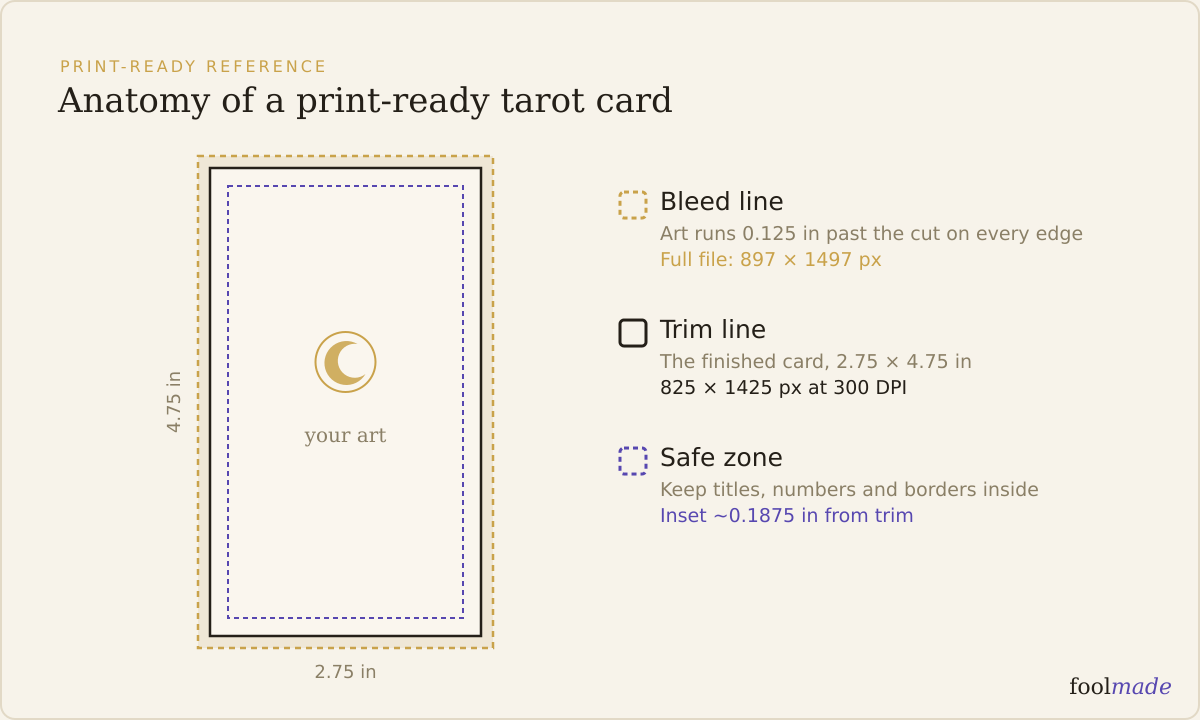
| Bleed present | About 0.125 in extra art past the trim on all four edges | Confirm art runs off the edge; the file is larger than the trim size |
| Aspect ratio | Every card the same width-to-height ratio | Divide width by height; all cards should match your printer's template |
| All 78 same size | Identical pixel dimensions across the deck | Sort files by dimensions or size; anything that stands out is wrong |
| Card back present | One back file, correct size and DPI, bleed included | Check it against the same rules as the fronts. It is easy to forget |
| Color space | One space across the deck (usually CMYK for print) | Check document color mode; mixed RGB and CMYK cards shift unpredictably |
| No low-res placed art | Every embedded image at 300 DPI at final size | Inspect placed or linked layers; a small logo scaled up drops below 300 |
If a card fails any row, fix it before you export the final batch. One weak card in a deck of 78 still means a reprint.
How do I check the DPI and real pixel size?
Look at the pixel dimensions, not the inches. Inches are a story your file tells based on its DPI setting, and that setting can be wrong. Pixels are the truth. A standard tarot card is 2.75 x 4.75 inches, which is 825 x 1425 pixels at 300 DPI. With bleed it is larger, often around 897 x 1497 pixels, depending on your printer's template.
In Photoshop, open Image then Image Size and read the top numbers in pixels. In Procreate, the canvas size is set at creation and lives under the wrench menu, Canvas, then Canvas Information. If your card reads 825 x 1425 but the DPI field says 150, the file is half the resolution it claims and will print soft. Trust the pixel count, then confirm the DPI matches.
For the exact numbers per printer, see the full breakdown in tarot card size and dimensions. If your cards came out at mixed sizes, the fix lives in keeping all 78 cards the same size.
What are the most common file mistakes?
Four errors cause almost every reprint, and none of them are visible on screen.
- 150 DPI dressed as 300. The art was created or exported at low resolution. It looks fine zoomed to fit, then prints fuzzy.
- Missing bleed. Art stops exactly at the trim line. The cutter drifts a hair and you get a thin white sliver on an edge. Bleed is the fix, and it matters on the card back too. See what is bleed and how much does a deck need.
- Mismatched sizes. One card was exported from a different canvas, so it is 20 pixels off. The printer either rejects the batch or crops it wrong.
- A low-res placed element. The card itself is 300 DPI, but a signature, border, or logo you dropped in is a small image scaled up. That one piece prints blurry while everything around it is sharp.
The pattern is the same every time: the whole file passes a glance, one number underneath is wrong, and the press prints exactly what the number says.
What is the fastest reliable way to check?
Check the real pixels of every card automatically instead of eyeballing them. Manual checking works, but it is slow and it is exactly the kind of repetitive number-reading where a tired human misses the one card that is off. Foolmade's print check reads the actual pixel dimensions, DPI, bleed, and consistency of your uploaded files and flags the cards that will not print clean, so you catch the 150 DPI card before the printer does. Foolmade never touches or generates your art. It only checks the numbers.
For the full picture of what "ready" means before you get to this stage, start with the pillar guide, is your tarot deck print-ready. This checking step is the last gate before you spend money.
Frequently asked questions
How do I know if my tarot cards are 300 DPI?
Open the file's Image Size or document properties and read the resolution field directly. Do not judge it by how sharp it looks on screen, because monitors scale everything to fit. If the field says anything below 300 DPI at final print size, the file will print soft.
What pixel size should a tarot card file be?
A standard 2.75 x 4.75 inch card is 825 x 1425 pixels at 300 DPI, and larger with bleed added, often near 897 x 1497 pixels. Always confirm the exact numbers against your specific printer's template, since trim and bleed vary slightly between printers.
Can I fix a low-resolution deck file before printing?
Not really. Upscaling a 150 DPI file to 300 DPI invents pixels that were never painted, and it prints muddy. The only real fix is to re-export from the original high-resolution art. This is why you check before you print, not after.
Do I need to check the card back too?
Yes. The card back is one file that gets printed 78 times, so a wrong size, low DPI, or missing bleed on the back ruins every card in the deck. Run it through the same checklist as the fronts.
Why did my deck look fine but print blurry?
The file was almost certainly below 300 DPI at final size, and your screen scaled it to look crisp. Presses print the actual pixels, not the preview. Checking the real DPI and pixel dimensions before printing catches this while it is still free to fix.
The bottom line: your art can be finished and your file can still cost you a reprint. Read the four numbers on every card before you send them, and read pixels, not inches. That habit is the difference between a clean first run and an expensive lesson.